Look, I’m not going to waste your time with fluff.
I’ve been using Apollo.io for over two years now. My team has scraped hundreds of thousands of leads off this platform, sent millions of emails, and booked more than 2,000 sales meetings for our clients. I’ve made pretty much every mistake you can make with this tool, but, I’ve also figured out how to use Apollo.io to generate leads
So instead of giving you another generic “here’s how to click buttons” tutorial, I want to share the stuff that took me months to figure out. The things that nobody tells you. The parts where I banged my head against the wall until something finally clicked.
If you’re in a hurry: Apollo’s database is probably the best I’ve used. But it’s not magic. You need to verify emails before sending, be smart about filters, and understand that the “verified” label doesn’t mean what you think it means. Stick around and I’ll show you how I build lists that convert.
First, Let's Be Honest About What Apollo Actually Is
Here’s the deal: Apollo.io tries to be an all-in-one platform. You can find leads, enrich data, send email sequences, make calls, track deals, you know, the whole nine yards.
The homepage promises a lot.
But here’s my honest take after two years: Apollo is fantastic at one thing, and just okay at the rest.
That one thing? The database. The 220+ million contacts. The filtering. That’s where Apollo genuinely shines, and where you should probably focus your energy.
My honest opinion: I don’t use Apollo’s sequencing. I don’t use their calling. I export the data and plug it into specialized tools such as Smartlead for emails, Close for calling, HubSpot for CRM. Could you run everything through Apollo? Sure. But I’ve found the specialized tools just work better for those specific jobs.
That said, if you’re just starting out and want everything in one place, Apollo absolutely works. I’m just sharing what I do after optimizing for two years.
The Pricing Thing (And Why the Free Plan is Actually Useful)
One thing I genuinely appreciate about Apollo: you can actually test it for free. Not some crippled trial, rather, a real free plan that lets you export 10 leads a month and poke around.
Let me break down the pricing page.
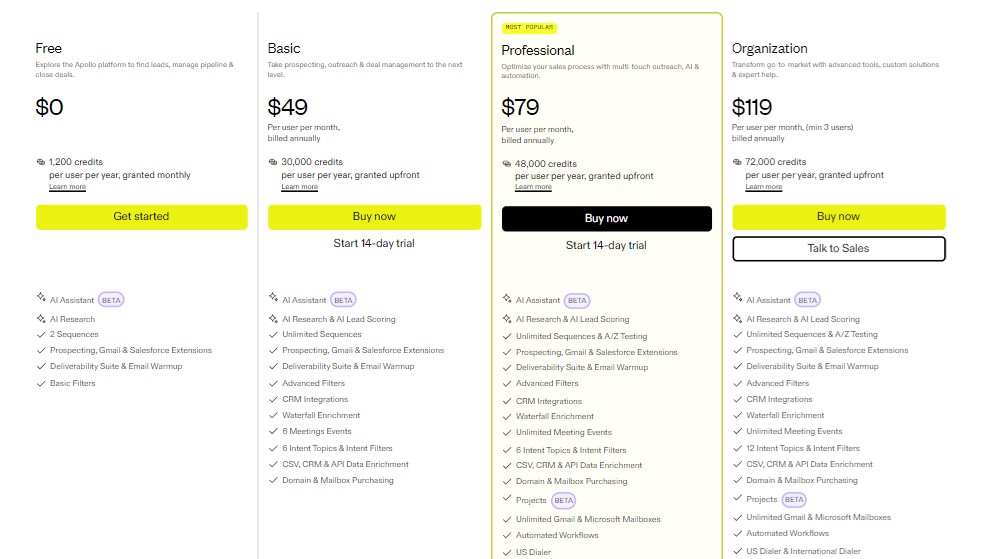
Here’s what I think about the tiers:
Free ($0) — Perfect for figuring out if Apollo has the data you need. Seriously, don’t upgrade until you’ve confirmed the contacts in your target market are actually in there.
Basic ($59/month) — This is where most small teams should start. 1,000 exports per month is plenty when you’re still figuring out your ICP.
Professional ($99/month) — I’d only upgrade here if you’re burning through credits or need the A/B testing for sequences.
Organization ($149/month) — Enterprise stuff. You’ll know if you need this.
Navigating the Platform (The Parts That Matter)
When you first log in, you’ll see a bunch of options in the left sidebar. Let me save you some time exploring:
The dashboard when you log in
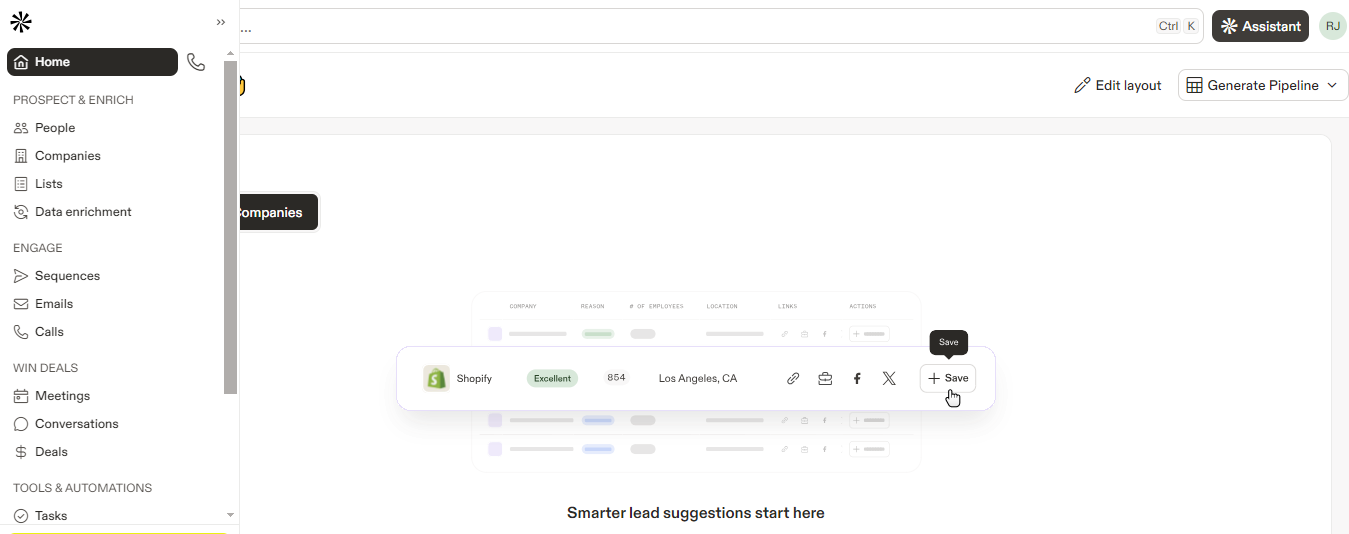
The stuff I use constantly:
- People— This is where you build lead lists. You’ll spend 80% of your time here.
- Companies— Underrated feature. I’ll show you a trick with this later.
- Lists— Where your saved leads live.
Lots of features, but focus on what matters
The stuff that exists but I rarely touch:
- Sequences — Works fine, but I prefer Smartlead
- Emails — Mailbox management. Necessary if you’re sequencing through Apollo
- Calls — Never got into this. I use Close for calling
- The sequence builder — it works, just not my preference
I’m not saying those features are bad. I’m saying that if you try to learn everything at once, you’ll get overwhelmed. Master the prospecting first. That’s where the money is.
Now the Filters. This is Where the Magic Happens
Okay, now we’re getting to the good stuff.
Apollo’s filtering is genuinely impressive. There are like 30+ different ways you can slice the data. But here’s what I’ve learned: more filters isn’t always better. Sometimes the simplest searches get the best results.
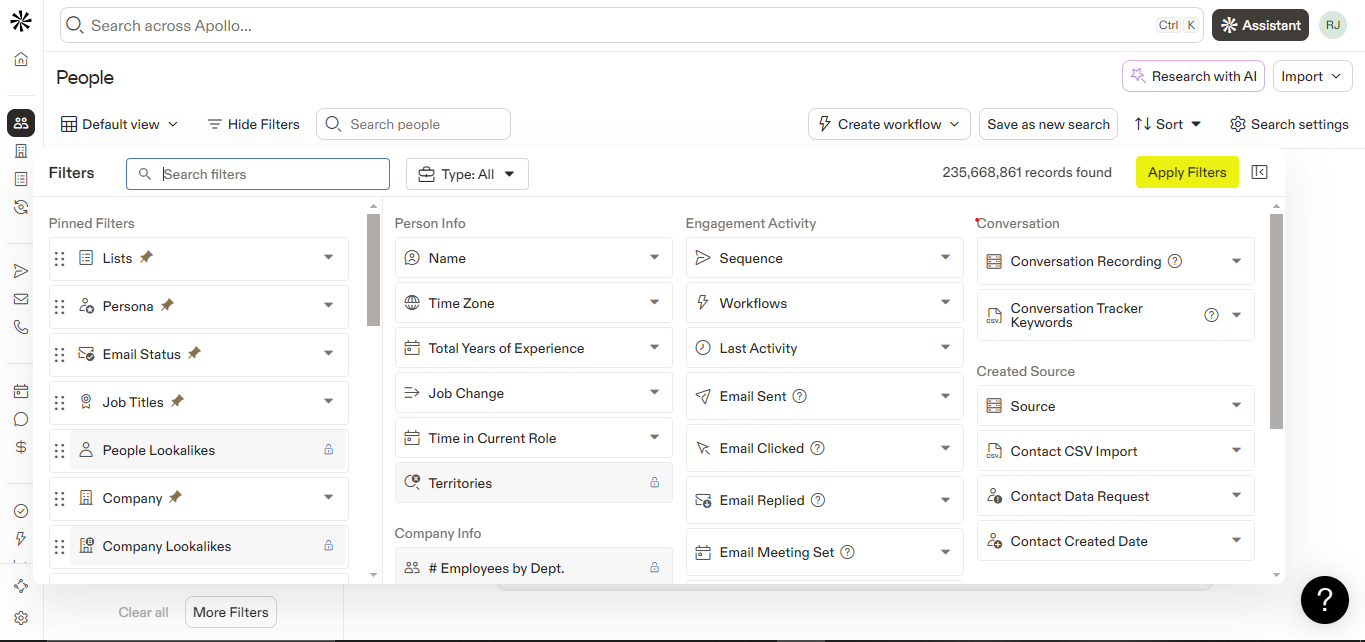
The People search interface is your new best friend
Let me walk you through the filters I actually use, and more importantly, how I use them.
Email Status: Pay Attention Here
This filter tripped me up for months. See these options?
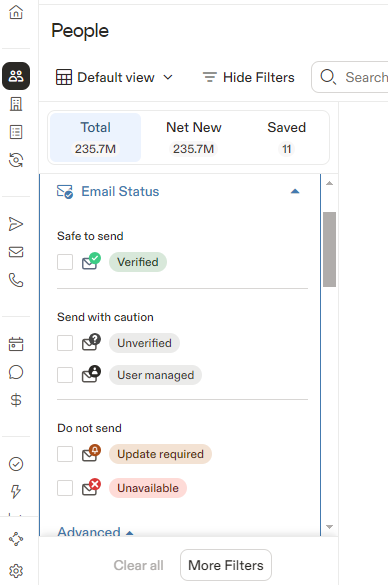
These labels are a bit misleading
When Apollo says “Verified”, and I cannot stress this enough, it doesn’t mean the email was verified today. It means it was verified at some point. Could’ve been six months ago. Could’ve been a year.
That said, I check both “Verified” and “Unverified” in my searches. The unverified emails are surprisingly accurate if the company has a standard email format.
Job Titles: Smarter Than You'd Expect
Here’s something I wish I’d known earlier: Apollo understands title variations.
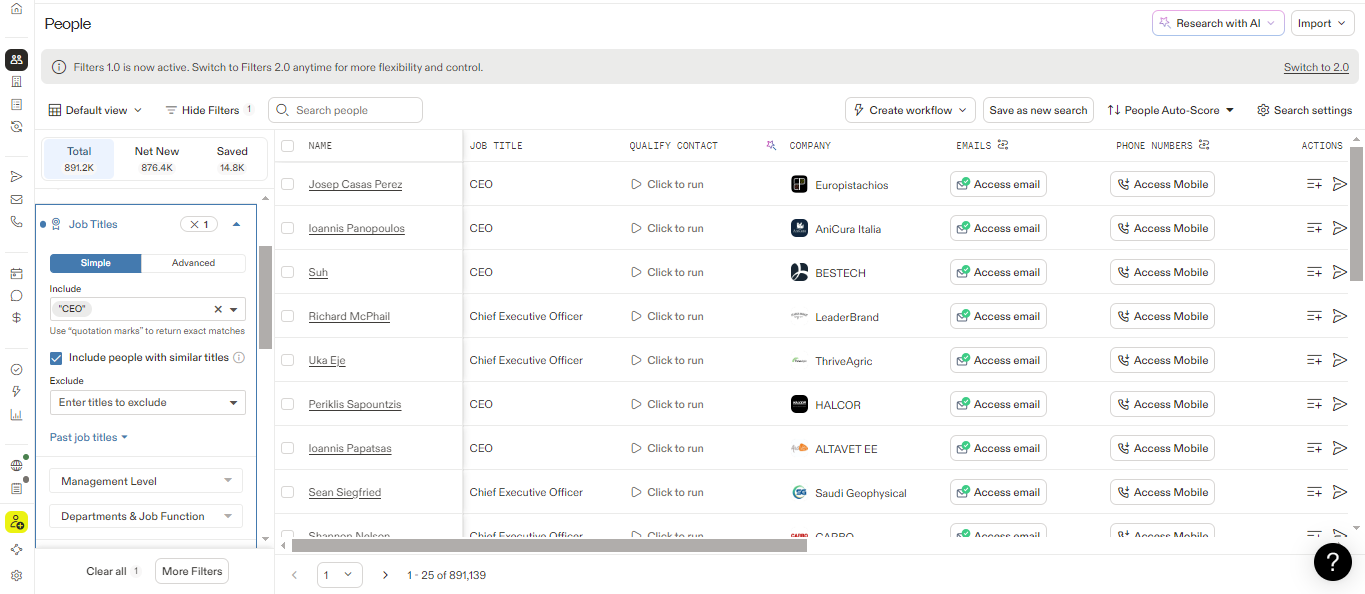
Apollo is smart about titles
When I type “CEO,” Apollo automatically includes “Chief Executive Officer.” When I type “VP Sales,” it grabs “Vice President of Sales” too. Coming from LinkedIn Sales Navigator where I had to manually type every variation… this was a game changer.
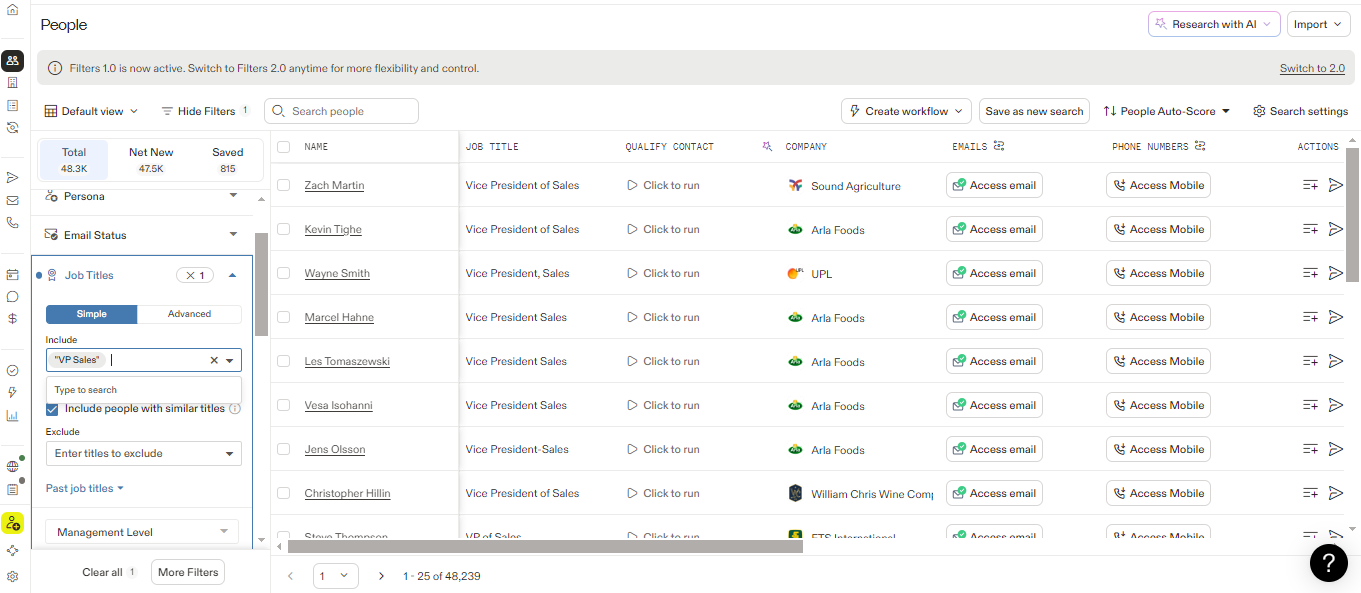
See how it expands automatically?
Quick tip: if you want EXACT matching only, put it in quotes. Searching for “President” won’t pull in “Vice President” or “Regional President.” Just the presidents.
The Exclusion Trick That Saved My Campaigns
For the longest time, I was getting too many “wrong” people in my lists. Directors when I wanted C-suite. VPs when I wanted owners.
Then I discovered the exclude feature:
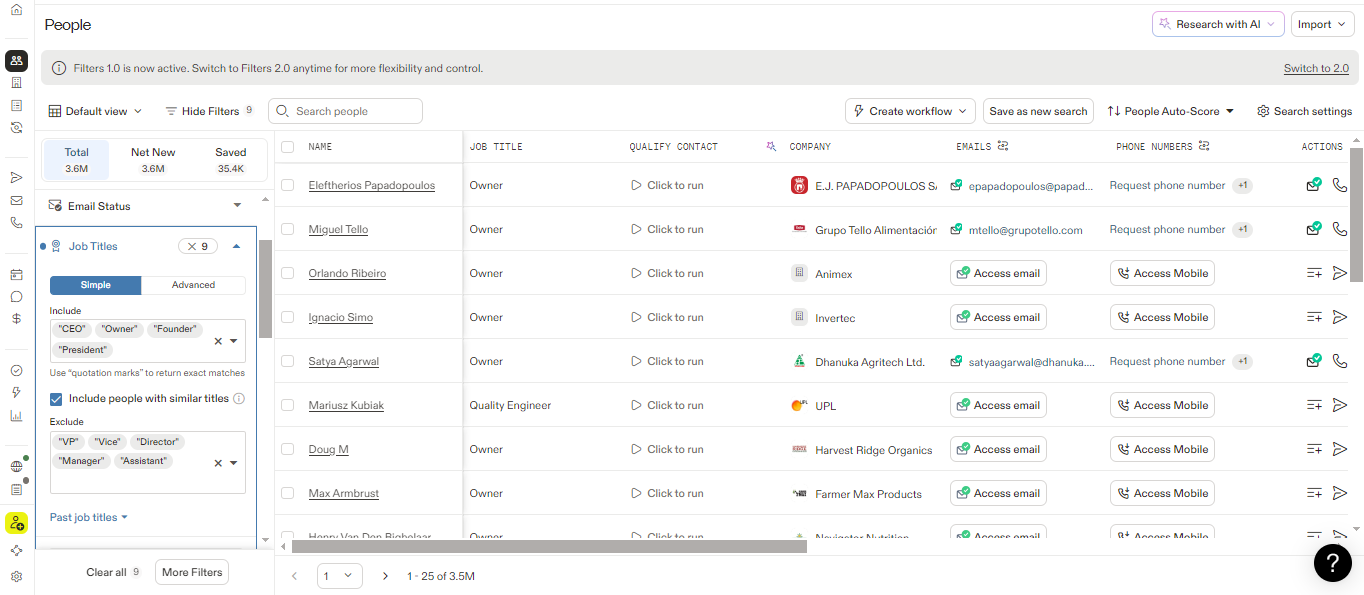
This cleaned up my lists dramatically
Now when I’m targeting business owners, I’ll search for: CEO, Owner, Founder, President. And I’ll EXCLUDE: VP, Vice, Director, Manager, Assistant.
My list quality went up probably 40% just from this one change.
Location: More Nuanced Than It Looks
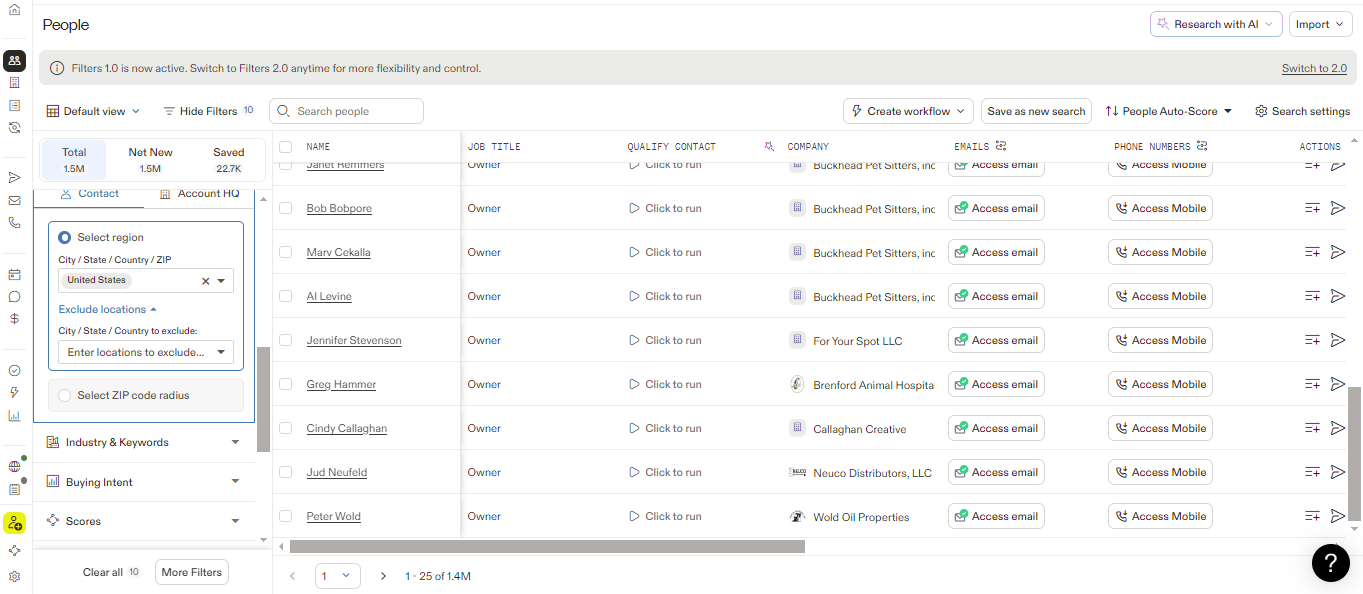
Contact location vs. company HQ. The big difference
Contact Location = Where the person physically is
Account HQ = Where the company is headquartered
Why does this matter? Say you’re selling to US companies. If you filter by Account HQ = United States, you’ll also get their remote employees in Canada, Europe, wherever. Sometimes that’s fine. Sometimes you specifically need people in a certain timezone. Think about what you actually need.
Employee Headcount: My Go-To Size Filter
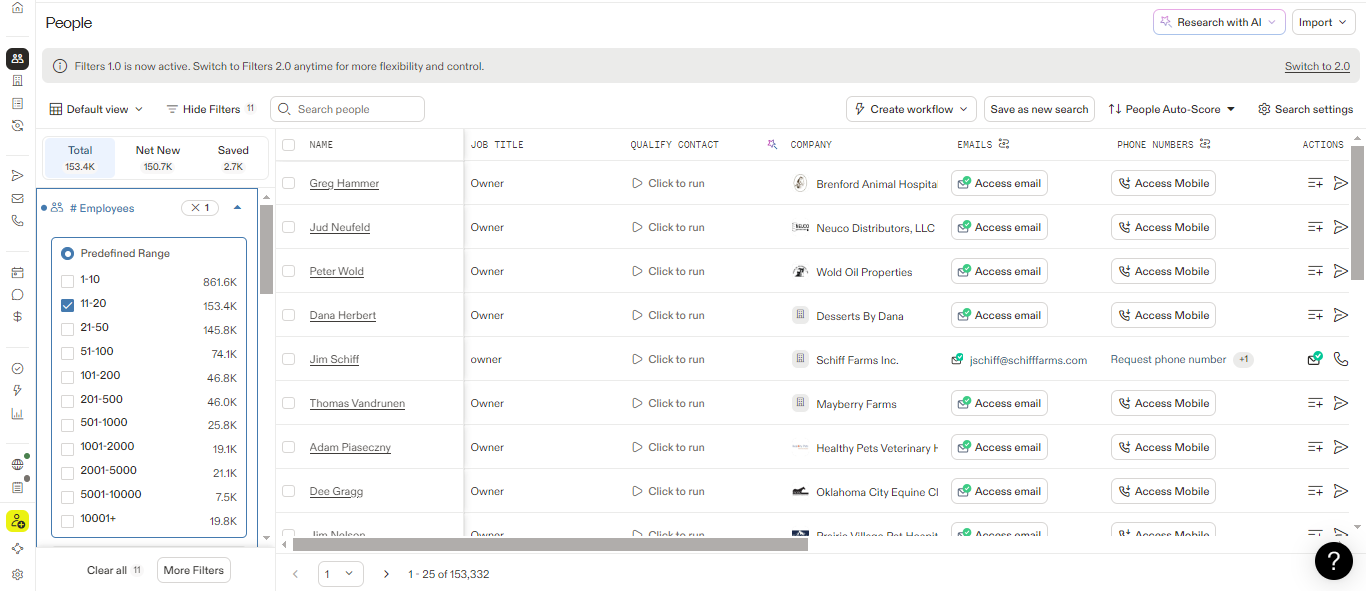
This is more reliable than revenue
I use headcount way more than revenue for one simple reason: revenue data for private companies is made up.
I don’t mean that as criticism but Apollo literally has to guess. The company isn’t publishing their revenue publicly. But employee count? That’s pulled from LinkedIn where people self-report. It’s way more accurate.
Industry + Keywords = The Combo That Actually Works
Here’s where it gets interesting. Industry by itself is too broad. Keywords by itself misses people. But together? That’s when the magic happens.
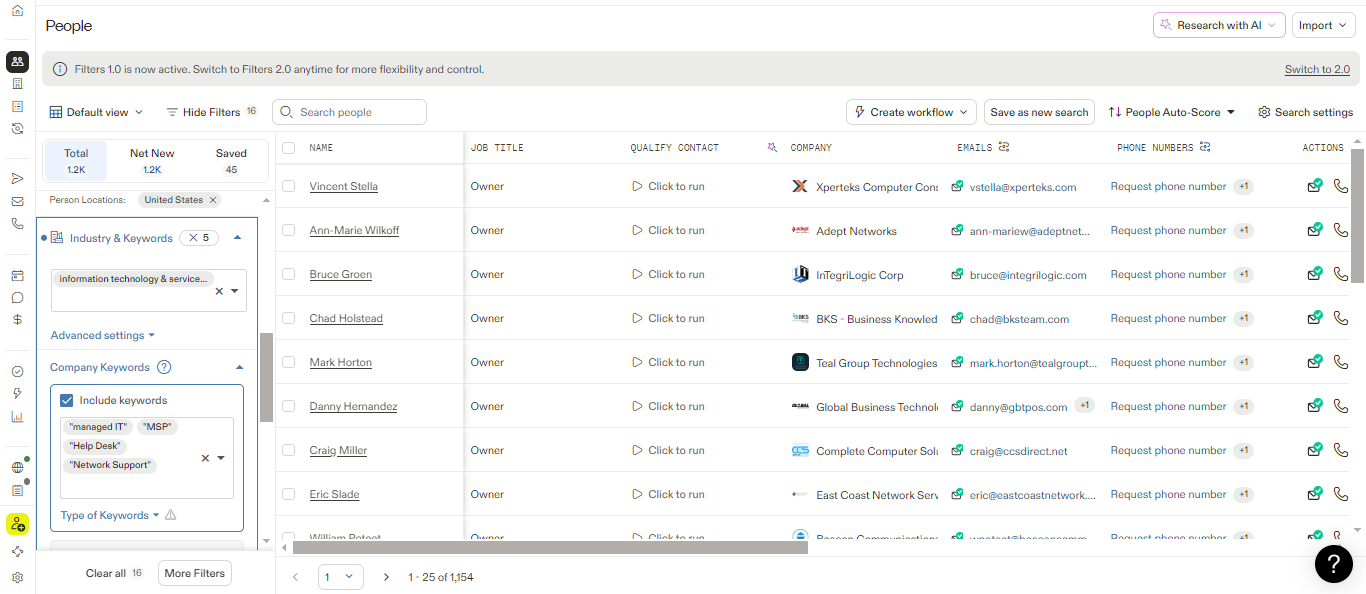
Layer these for precision
Example: I was targeting managed IT companies. If I just searched the “Information Technology” industry, I got software companies, IT consultants, random tech startups that’s way too broad.
But when I added keywords like “managed IT,” “MSP,” “help desk,” “network support” and suddenly, my list was 90% on-target.
Technologies: The Underrated Gold Mine
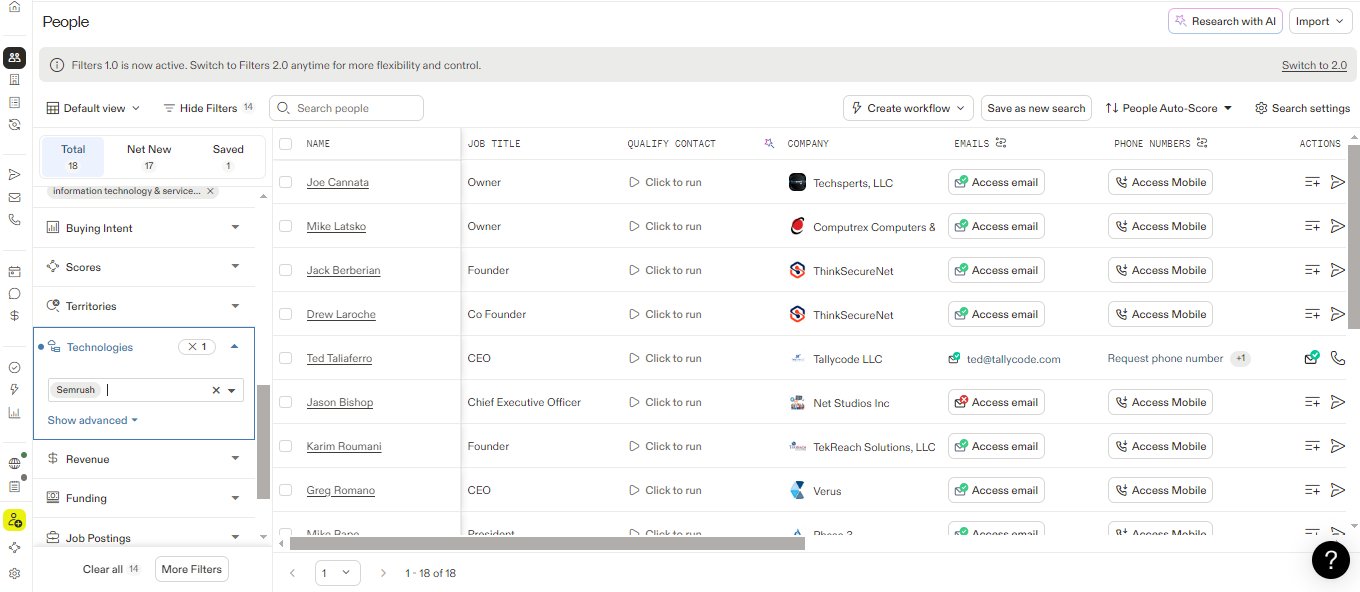
Find companies using specific tools
This filter lets you find companies using specific software. The use cases are endless:
- Selling something that integrates with Salesforce? Find Salesforce users.
- Competitor to HubSpot? Find HubSpot users.
- SEO tool? Find companies using SEMRush or Ahrefs.
I don’t use this for every campaign, but when it fits, it’s incredibly powerful.
Revenue Filter: Here’s My Honest Take
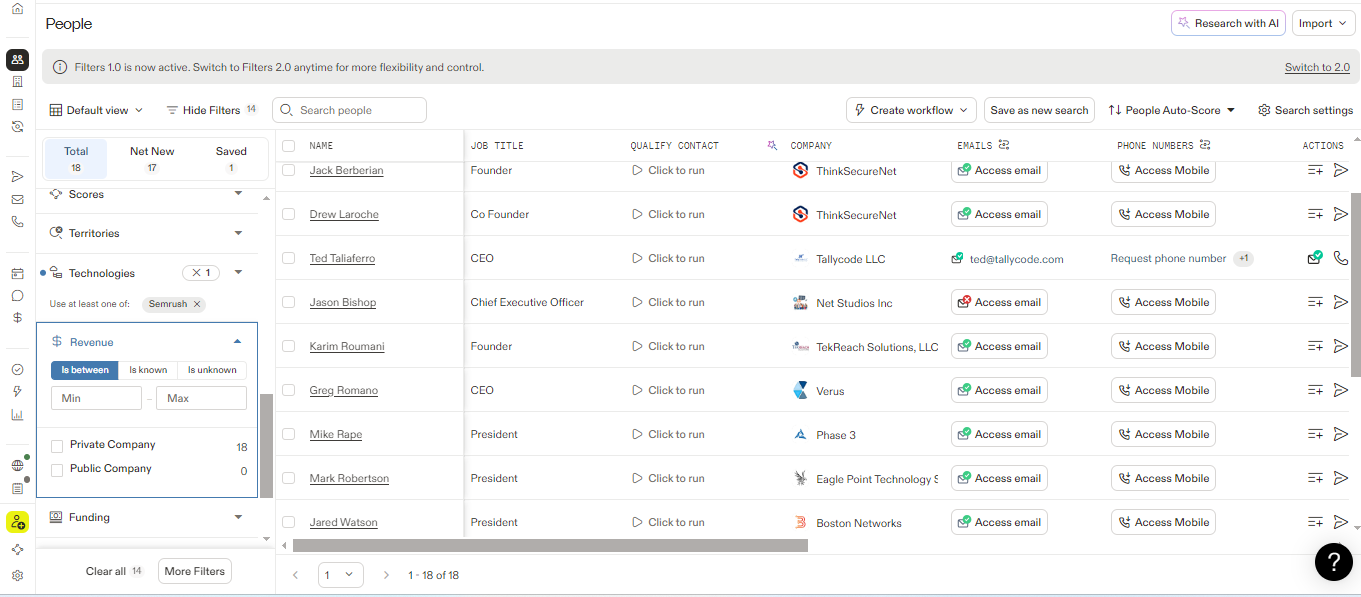
Use with caution for private companies
I’m going to be blunt: I rarely use this.
For public companies, sure, the data is accurate. But 90% of my prospecting is to private companies, and the revenue numbers are estimates at best. I’ve seen Apollo say a company does $5M when they actually do $500K. And vice versa.
If company size matters to you (and it should), use employee headcount instead.
The Filters I Skip
Buying Intent — Apollo offers this, but I source my own intent signals. If someone’s visiting competitor websites or engaging with certain content, I’d rather find that out myself than pay extra for Apollo’s interpretation.
Funding — Useful if you specifically target funded startups. Otherwise, skip it.
Job Postings — Actually useful if you’re in staffing or HR tech. Otherwise, probably not.
Let Me Show You an Actual Search
Theory is great, but let me just show you how I’d build a real list. Let’s say I’m targeting managed IT companies in the US.
Step 1: Start with the basics
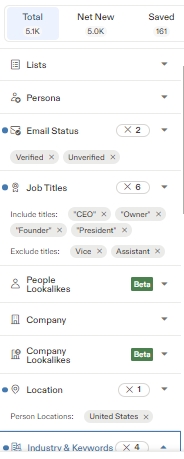
Here's my actual filter setup
My filters:
- Email Status: Verified + Unverified
- Job Titles: CEO, Owner, Founder, President
- Exclude: VP, Vice President (don’t want to catch VPs)
- Person Location: United States
- Employees: 11-200 (my sweet spot for IT services)
- Industry: Information Technology, Computer & Network Security
- Keywords: managed IT, help desk, MSP
Step 2: Check the results
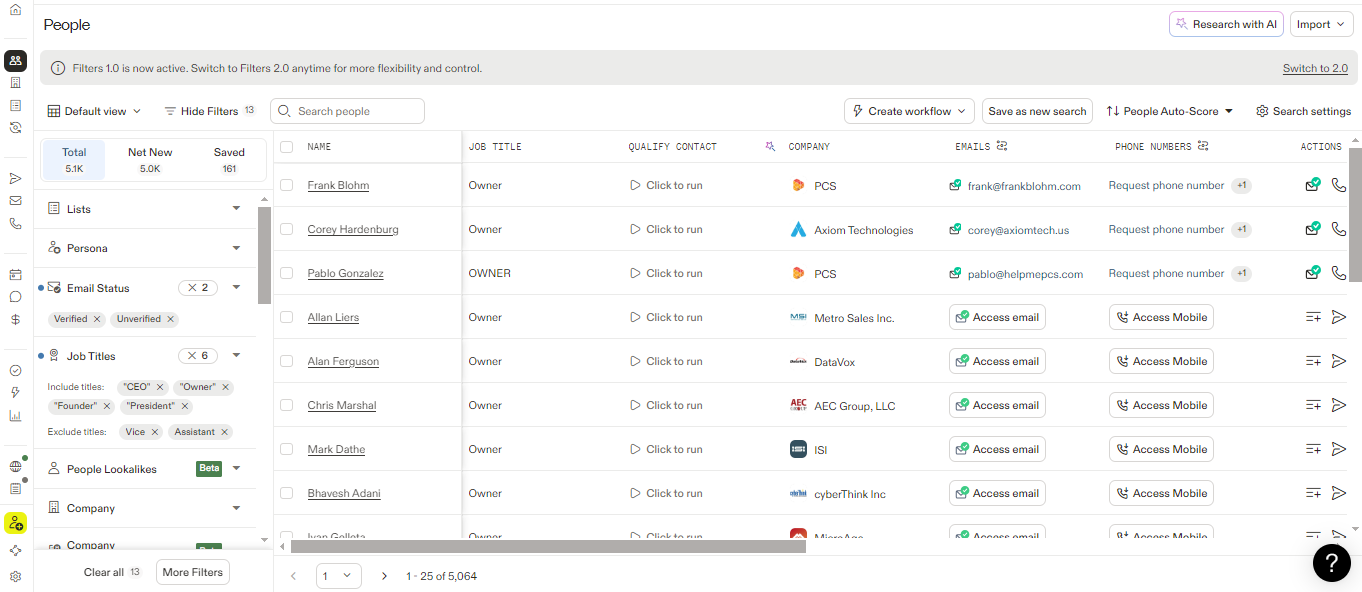
Always review before saving
I got about 500 results. Before I save anything, I scroll through and gut-check: Do these look like my target companies? Are the job titles right? Any obvious junk?
In this case, looks pretty solid. Some noise, but that’s normal.
Step 3: Save to a list
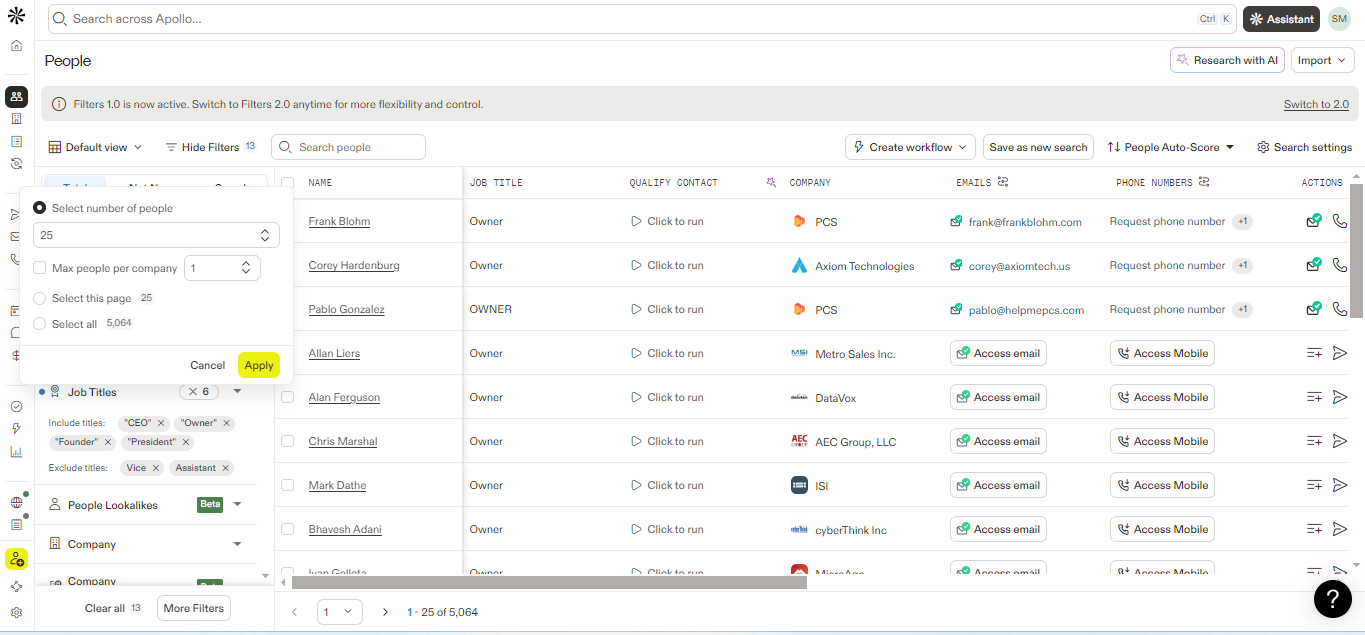
Select what you want to save
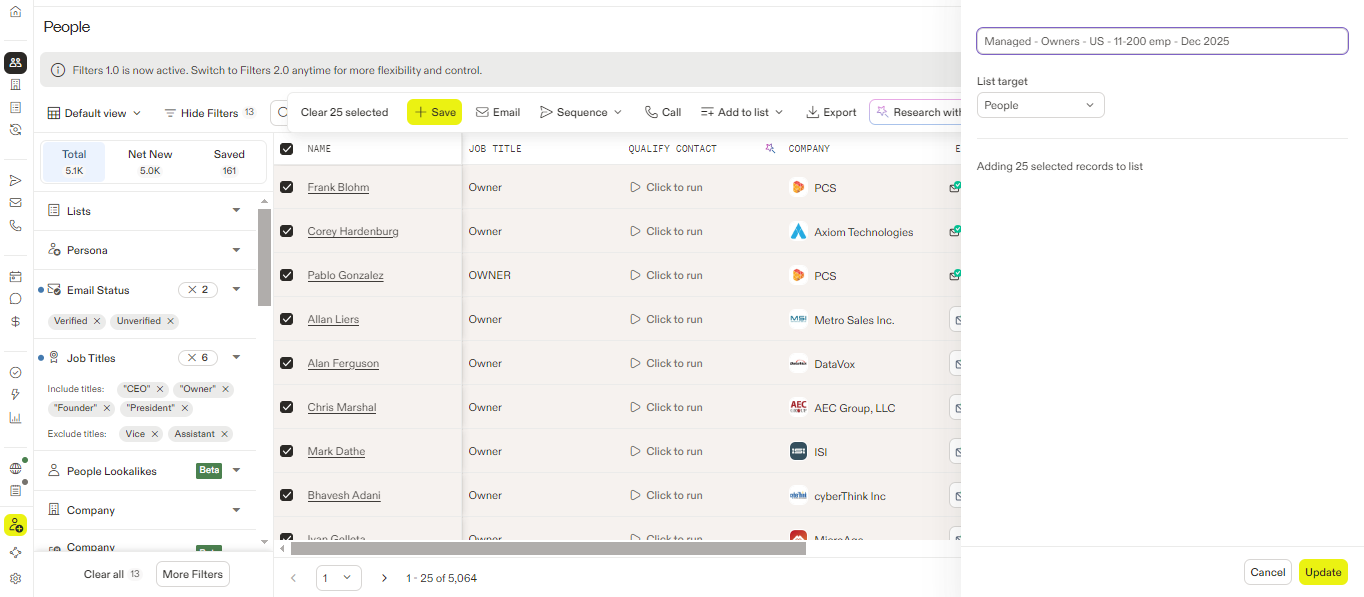
Name it something you'll recognize later
I name my lists descriptively: “Managed IT – Owners – US – 11-200 emp – Dec 2024”
Sounds tedious, but future me always thanks past me when I can find exactly what I’m looking for.
Step 4: Export
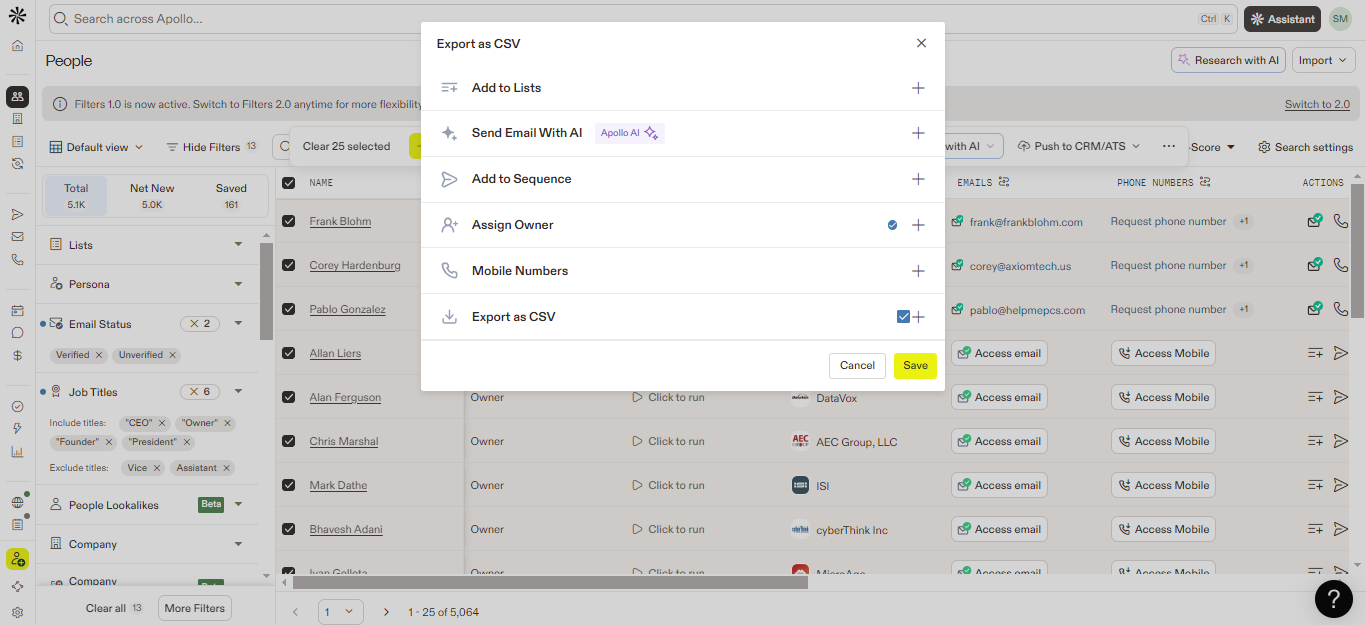
Your leads are ready to export
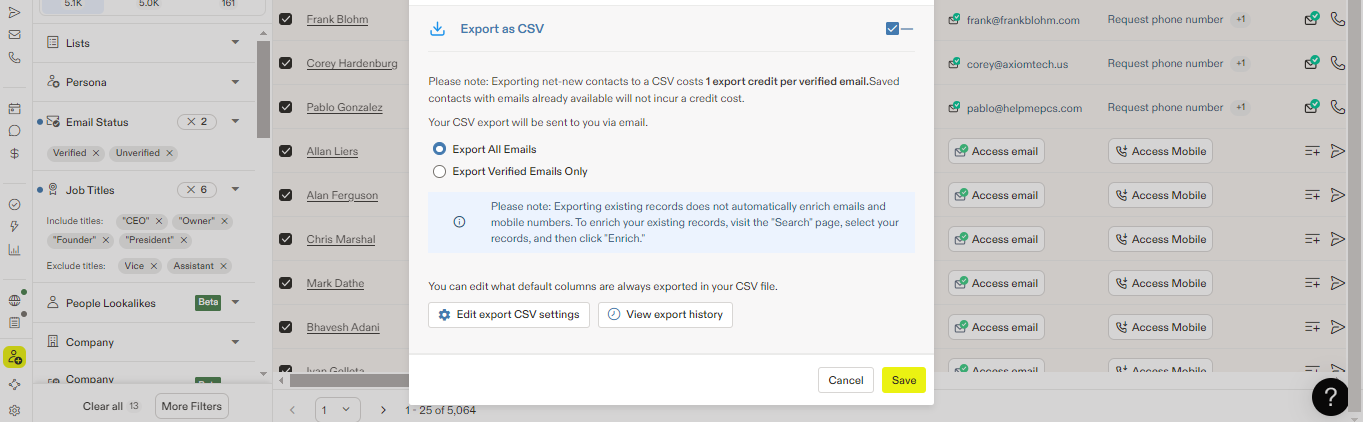
Choose what data you need
I grab the CSV and I’m done. Well…almost.
I still need to verify those emails before sending. But the Apollo part is complete.
The Companies Tab Trick Nobody Talks About
Okay, here’s something that took me way too long to figure out.
The Companies tab isn’t just for finding companies. It’s for discovering keywords you didn’t know to search for.
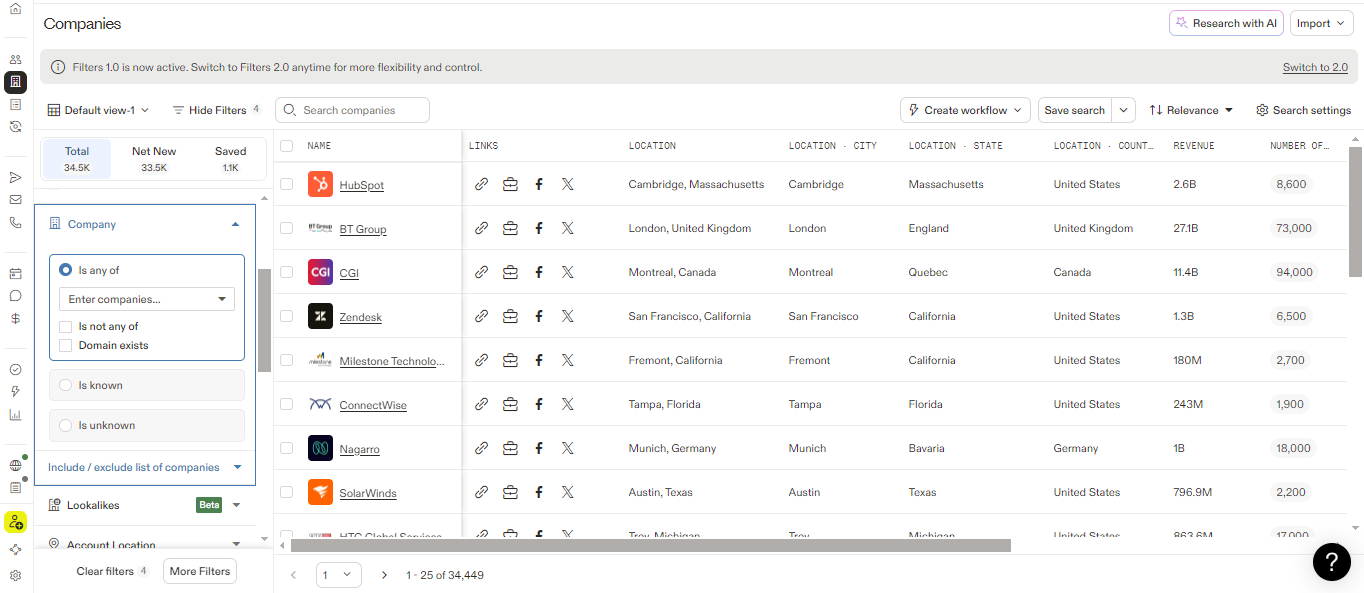
This tab is more useful than it looks
Here’s the trick: Run your People search, then flip to Companies with similar filters. Click into individual companies. Look at their keywords, their descriptions, their categorizations.
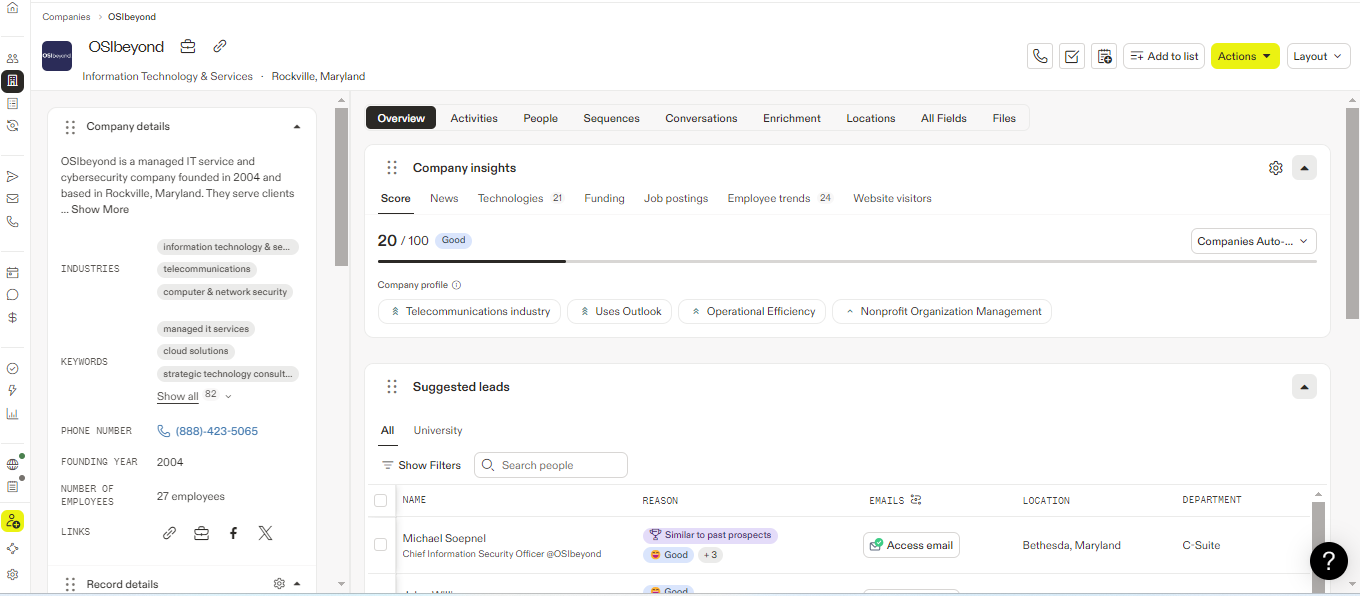
Look at all those keywords
When I did this for managed IT companies, I found keywords I never would have thought of:
- Cybersecurity (obvious in retrospect)
- Telephony
- Compliance
- Cloud migration
- Network infrastructure
I added those to my keyword filters, and my list suddenly doubled. Same quality, twice the size.
What to Actually Do With This Data
So you’ve exported your leads. Now what?
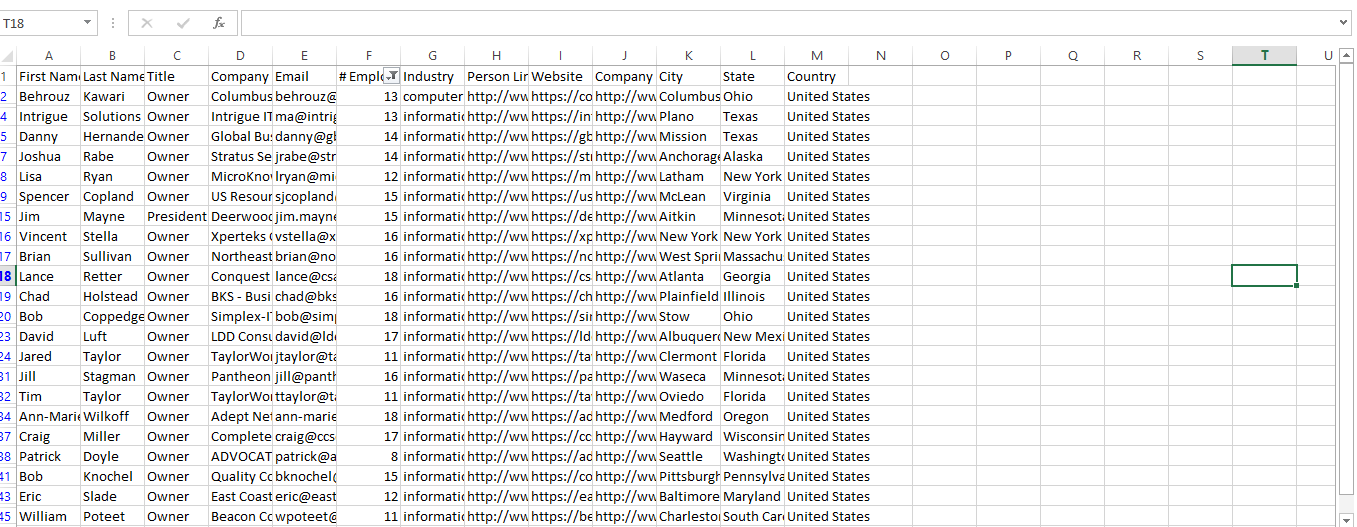
Your Apollo data in a spreadsheet
Step 1: Verify those emails (I'm serious)
Before you do anything else, run your list through an email verifier.
I use Listmint because it handles catch-all domains well. Other good options: Million Verifier (cheap), NeverBounce (reliable), Debounce (fast).
This step costs a few bucks but saves you from bounces that’ll tank your deliverability. Non-negotiable.
Step 2: Optional: Enrich with Clay
For campaigns where I want extra personalization, I run the data through Clay:
Clay is like spreadsheets on steroids
Clay lets me:
- Verify the company actually matches what I’m looking for (AI-powered)
- Pull additional data points from other providers
- Generate personalized first lines for emails
- Clean up messy data
Is Clay necessary? No. But for high-value campaigns, the extra personalization crushes it.
Step 3: Load into your sequencer
Finally, I upload to Smartlead (or whatever sequencer you use) and start the campaign.
The whole process from “I need leads” to “emails are sending” takes me maybe 2-3 hours for a new list. Including verification and everything.
The Stuff I Wish Someone Had Told Me
Let me save you some pain. These are lessons that cost me time and money:
Wrapping Up
That's the real talk on Apollo
Honesty, Apollo.io is a genuinely excellent tool. The database is massive, the filtering is powerful, and you can get started for free. I use it every single day. And now, you know how to use Apollo.io to generate leads.
But it’s not magic. The leads won’t verify themselves. The filters won’t configure themselves. And the campaigns won’t write themselves.
What I’ve tried to give you here is the playbook that took me two years to develop. The filters that actually matter. The tricks that improve list quality. The mistakes you can skip.
If you take one thing from this: master the prospecting database first. That’s where Apollo’s competitive advantage lives. Everything else you can figure out later or handle with other tools.
Now go build some lists.
About the Author
Robert Jordan is a seasoned marketer with more than a decade of experience in the B2B sector. His specialties include content marketing, content writing, and B2B marketing.